Lottie is a powerful library that parses After Effects animations and makes mobile (and web) apps more user friendly, enhancing them with beautiful animations and interactions.
It’s common for Android projects to fail during build due to incompatible versions of Lottie, or any other library, used by different dependencies.
However, these solutions can lead to runtime issues, including crashes.
Using a resolution strategy that forces a version in a conflict can lead to runtime error.
A more robust way to handle this issue is through Dependency Shadowing.
Dependency Shadowing involves taking a dependency and renaming its package to avoid conflicts. You might think about forking the repository and changing the package name, but there’s a more efficient approach that doesn’t require maintaining a fork.
There is a well-known Java plugin that does this shadowing but doesn’t work quite well will Android projects. So in order to have a better experience in Android development, a Gradle plugin should be created.
Dependency Shadowing
Gradle comes to our rescue
We’ll create a Gradle plugin that enables us to easily shadow dependencies like this:
Here, shadowAARImplementation is a configuration that processes the dependency, shadows it, and adds it to your project. In order to create our plugin. let’s create a buildSrc folder inside your Android project, and inside the folder a structure like the one showed below.
The content of the AddShadowedAARDependenciesPlugin.kt can be found at my public gist.
Once that is done, add a configuration block in order to rename the package of (Lottie) dependency, with a custom one. I will use for this example com.eaceto.shadowed.lottie
If you sync & build your Android project you will find a lot of error related to missing com.airbnb.lottie. This is because now you will find all the Lottie classes under com.eaceto.shadowed.lottie.
Adopting Lottie Compose
The above solution works great for Lottie and other libraries but the GradleUp/Shadow plugin has a few problems with top-level functions. The Lottie-Compose package is full of these functions, so the workaround is:
Copy all the Lottie Compose functions to a package in your code
So it seems like desktop applications are dead, or the were… I don’t know. I’d rather a full native app instead of a web-based app. EVERYWHERE! And that includes desktop apps. Electron.js based apps are fast to develop, easy to maintain, and cross platform, but they s*ck$. They are hungry for resources, CPU and memory, as they are based on the always-hungry (Chrome) browser.
So, a few solutions come to scene in the last few years. The most famous I believe it’s Flutter, it covers mobile and desktop, but also web. But it’s not the only one! JetBrains released Compose for Desktop, which targets macOS, Linux and Windows. It’s a port of Android’s Compose for Desktop, what makes this a great alternative for multiplatform apps. If we add Kotlin Multiplatform to this equation for creating Business Logic that can also run on iOS, Kotlin seems like a great starting point for fully native desktop and mobile apps.
Web-based multiplatfom solutions are hungry for resources. Native apps are more resource-efficient, load faster, work better in offline mode.
Similar to the previous article, I will explore the development process of a Linux app using Kotlin Compose, and also will run that app on macOS. Take into consideration that Kotlin Compose is yet an experimental feature.
System Requirements
The only requirement for developing apps using Compose for Desktop, is Kotlin 1.4.20 or newer. A Java Runtime Environment is of course required for this JVM language, and even Kotlin can run on JRE 7 (for example) it’s recommended to use an as new as possible Java Virtual Machine, for example JVM 11 or 13.
At the time of this post there is a bug in JDK 14 that doesn’t allow to generate a Debian package in Linux. If you are using Linux, please switch to either JDK 11 (LTS) or JDK 15.
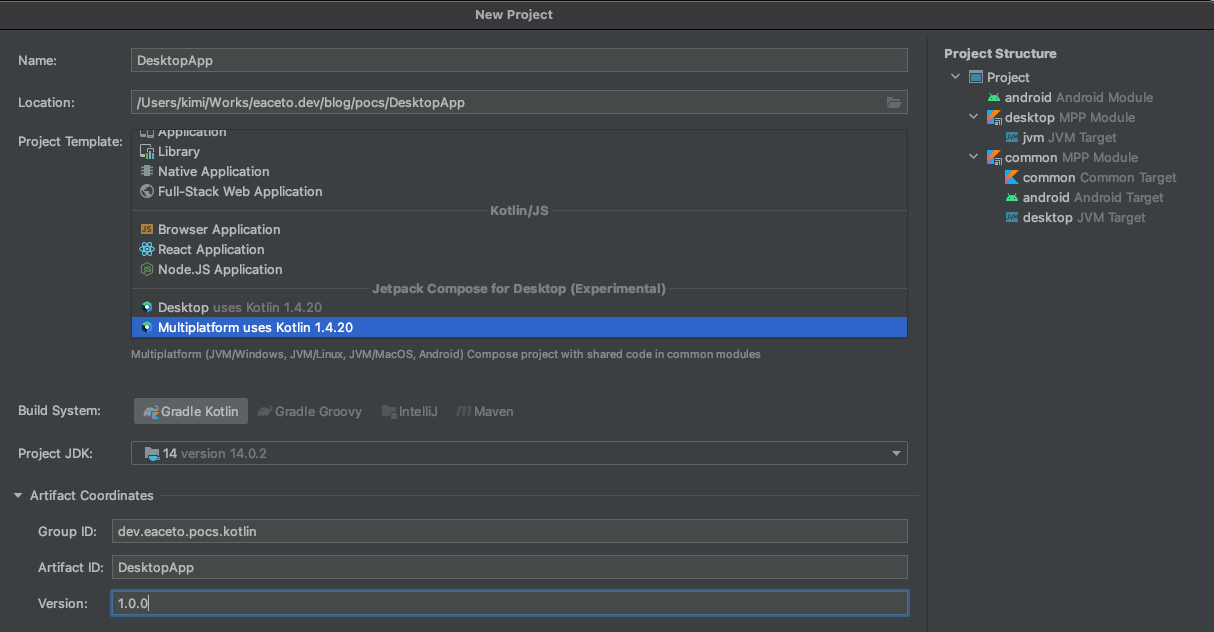
IntelliJ IDE, made by JetBrains, supports creating Kotlin Compose apps out-of-the-box. Two flavours are available:
Desktop
Multiplatform
Desktop targets macOS, Linux and Windows using Compose, while Multiplatform adds Android support.
In this tutorial, a desktop-only app will be created.
Getting Started
When the IDE finished starting up the project, all dependencies are downloaded and the index is updates, a single Main.kt file will be present in your source folder. The entry point of the app is a main function that returns a Window.
Packaging an application can be a little tricky, you can run the app everywhere using a gradle o maven task, but you can only create a package, a distributable installation file, in the same architecture of the target package. In other words, there is no “cross packaging”. You cannot create a Debian compatible -deb- file from macOS. So, in order to cover all the available flavours, you will need access to Windows, macOS and Debian.
Which, if you have a macOS machine, it’s pretty easy to archive using VirtualBox or any other Virtual Machine.
The package task generates a distributable file for the current platform. There are other related tasks, but I couldn’t successfully run any of the on a platform different that the current on.
$ ./gradlew package

> Task :packageDmg
WARNING: Using incubator modules: jdk.incubator.jpackage
The distribution is written to build/compose/binaries/main/dmg/DesktopApp-1.0.0.dmg

BUILD SUCCESSFUL in 11s
5 actionable tasks: 3 executed, 2 up-to-date
msi (Microsoft Installer) for Windows
deb (Debian package) for Debian/Ubuntu compatible
dmg (Disk Image File) for macOS
Inside generated DMG file
Artefacts
The very simple app that you see in this post needs 80MB of disk space, and generates a DMG file of nearly 42MB. Where only 1MB belongs to this application (assets and compiled code). The rest is just Kotlin libraries (coroutines, stdlib, material design, etc).
/Applications/DesktopApp.app/Contents/app
kimi@Kimis-Mac-mini /A/D/C/app> ls -la
total 37024
drwxr-xr-x  38 kimi  admin     1216 Mar 23 14:34 ./
drwxr-xr-x   8 kimi  admin      256 Mar 23 14:34 ../
-rw-r--r--   1 kimi  admin   104427 Mar 23 14:34 DesktopApp-1.0.0.jar
-rw-r--r--   1 kimi  admin     1522 Mar 23 14:34 DesktopApp.cfg
drwxr-xr-x   3 kimi  admin       96 Mar 23 14:34 META-INF/
-rw-r--r--   1 kimi  admin     1522 Mar 23 14:34 MainKt$main$1$1$1$1$1$1.class
-rw-r--r--   1 kimi  admin     9533 Mar 23 14:34 MainKt$main$1$1$1$1$2$1.class
-rw-r--r--   1 kimi  admin    15698 Mar 23 14:34 MainKt$main$1$1$1$1.class
-rw-r--r--   1 kimi  admin     9692 Mar 23 14:34 MainKt$main$1$1.class
-rw-r--r--   1 kimi  admin     2157 Mar 23 14:34 MainKt$main$1.class
-rw-r--r--   1 kimi  admin     1292 Mar 23 14:34 MainKt.class
-rw-r--r--   1 kimi  admin   208635 Mar 23 14:34 animation-core-desktop-0.2.0-build132.jar
-rw-r--r--   1 kimi  admin   201364 Mar 23 14:34 animation-desktop-0.2.0-build132.jar
-rw-r--r--   1 kimi  admin    17536 Mar 23 14:34 annotations-13.0.jar
-rw-r--r--   1 kimi  admin    15414 Mar 23 14:34 desktop-jvm-0.2.0-build132.jar
drwxr-xr-x   4 kimi  admin      128 Mar 23 14:34 drawable/
-rw-r--r--   1 kimi  admin   822462 Mar 23 14:34 foundation-desktop-0.2.0-build132.jar
-rw-r--r--   1 kimi  admin   357370 Mar 23 14:34 foundation-layout-desktop-0.2.0-build132.jar
-rw-r--r--   1 kimi  admin  1488745 Mar 23 14:34 kotlin-stdlib-1.4.20.jar
-rw-r--r--   1 kimi  admin   191485 Mar 23 14:34 kotlin-stdlib-common-1.4.20.jar
-rw-r--r--   1 kimi  admin    22355 Mar 23 14:34 kotlin-stdlib-jdk7-1.4.20.jar
-rw-r--r--   1 kimi  admin    16233 Mar 23 14:34 kotlin-stdlib-jdk8-1.4.20.jar
-rw-r--r--   1 kimi  admin   196243 Mar 23 14:34 kotlinx-collections-immutable-jvm-0.3.jar
-rw-r--r--   1 kimi  admin  1672388 Mar 23 14:34 kotlinx-coroutines-core-jvm-1.4.1.jar
-rw-r--r--   1 kimi  admin    10884 Mar 23 14:34 kotlinx-coroutines-swing-1.4.1.jar
-rw-r--r--   1 kimi  admin  1261868 Mar 23 14:34 material-desktop-0.2.0-build132.jar
-rw-r--r--   1 kimi  admin   674505 Mar 23 14:34 material-icons-core-desktop-0.2.0-build132.jar
-rw-r--r--   1 kimi  admin   584609 Mar 23 14:34 runtime-desktop-0.2.0-build132.jar
-rw-r--r--   1 kimi  admin    19435 Mar 23 14:34 runtime-dispatch-desktop-0.2.0-build132.jar
-rw-r--r--   1 kimi  admin    56960 Mar 23 14:34 runtime-saved-instance-state-desktop-0.2.0-build132.jar
-rw-r--r--   1 kimi  admin   248772 Mar 23 14:34 skiko-jvm-0.1.18.jar
-rw-r--r--   1 kimi  admin  8553451 Mar 23 14:34 skiko-jvm-runtime-macos-x64-0.1.18.jar
-rw-r--r--   1 kimi  admin  1378337 Mar 23 14:34 ui-desktop-0.2.0-build132.jar
-rw-r--r--   1 kimi  admin    38650 Mar 23 14:34 ui-geometry-desktop-0.2.0-build132.jar
-rw-r--r--   1 kimi  admin   304483 Mar 23 14:34 ui-graphics-desktop-0.2.0-build132.jar
-rw-r--r--   1 kimi  admin   311880 Mar 23 14:34 ui-text-desktop-0.2.0-build132.jar
-rw-r--r--   1 kimi  admin    81156 Mar 23 14:34 ui-unit-desktop-0.2.0-build132.jar
-rw-r--r--   1 kimi  admin    11744 Mar 23 14:34 ui-util-desktop-0.2.0-build132.jar
It may seems to much, but, remember that this application embeds a Java Runtime and a lot of libraries that make your live easier developing in Kotlin.
In comparison to Electron.js + React.js I believe that the artefact size is similar, but there is a huge improvement in running a Kotlin / JVM app.
In the past year as a Technical Leader at Santander I have seen several a lot of code challenges submitted by applicants. All of them were small apps with one explicit requirement. Submit an app that makes you are comfortable to put in production.
Most of these apps where written in Java, others in Node.js and a few in Kotlin. And most (if not all) of them, shared a single missing point. Static Code Analysis.
Submit an app that makes you comfortable to put in production.
Static Code Analysis
So what is Static Code Analysis and why it’s important for production-ready software development.
Static Code Analysis, a.k.a. Source Code Analysis, is a type of analysis that addresses weaknesses that may lead to vulnerabilities. It automates a task that can be done in a deep code review, but also allows a much richer analysis. For example, duplicate code detection, coverage and quality of unit tests, bad practices, known vulnerabilities, etc.
There is such thing as Dynamic Code Analysis, in contrast to Static, and the main different is when this analysis is done. Is Dynamic the analysis is done after the program runs (during testing, for example) and in Static it is done before (unit testing and source code).
The best thing about Static Code Analysis is that it’s super easy to integrate in your development processes, either in a CI (Continuous Delivery) or a Git Hook (pre-push, for example).
Straight to the point
We will see in this post how to add a Maven task for a Java project, and do some Static Code Analysis using SonarQube Community Edition. No fancy hardware is needed, no cloud computing or VPS, just your machine which should be able to run SonarQube locally using Docker.
Adding SonarQube to a Maven project
First of all we will add the Jacoco and Sonar plugins to the project’s pom.xml.
SonarQube will perform static code analysis based on some output files that Maven will produce when running a specific task, but prior to that, we need a working SonarQube Server.
Fortunately, that can be done easily using Docker. In case you don’t have Docker installed in your machine, follow this guide if you are under Linux, or this one if you are on Windows or macOS.
Then pull the latest SonarQube image, and bind the internal port 9000 to your local machine port 9000.
docker run -d --name sonarqube -e SONAR_ES_BOOTSTRAP_CHECKS_DISABLE=true -p 9000:9000 sonarqube:latest
Once it completes successfully, open your browser and login into http://localhost:9090 with the default credentials:
login: admin
password: admin
Create a new application and register for a Project ID and a Project Token. For more information about this, check this quick guide.
Putting all together
Once your application is created in SonarQube dashboard, and you have a valid token, run the following maven task.
Where <ProjectID> and <ProjectToken> where just created. When the target finished executing, you will see the link to your project’s report on the output.
ANALYSIS SUCCESSFUL, you can browse http://localhost:9000/dashboard?id=com.project
You will see in your project’s dashboard information about your code quality similar to the one in the following screenshots.







 Tech Blog