-
Fibonacci Sequence (or when NOT to use recursion)

For those of us who study computer science and algorithms, the study of recursion has an iconic example: The Fibonacci sequence.I truly believe that this is clearly the worst scenario for using recursion. Some of you may think that it’s a great example due to the simplicity of the code. It is short, easy to remember, easy to read, even beautiful.
For example, I found this Swift implementation quite short, and I don’t believe it is possible to write one in fewer lines.
func fib(n: Int) -> Int {
    guard n > 1 else { return n }
    return fib(n-1) + fib(n-2)
}
It is clear the use of recursion, the function only has two lines and F(0) and F(0) are solved in O(1). While the rest of the numbers is resolved in O(2^n). (For more information about Big-O notation take a look at this Wikipedia post).
Now, let’s do some maths. We will see that it takes to calculate F(n) when N is less than 6
F(0) = 0
F(1) = 1
F(2) = F(1) + F(0) = 0 + 1 = 1
F(3) = F(2) + F(1) = (F(1) + F(0)) + F(1) = 2
F(4) = F(3) + F(2) = (F(2) + F(1)) + (F(1) + F(0)) = 3
F(5) = F(4) + F(3) = (F(3) + F(2)) + (F(2) + F(1)) = 5
F(6) = F(5) + F(4) = (F(4) + F(3)) + (F(3) + F(2)) = 8
A visual representation of how to calculate each number in the sequence
The first approach to optimise this function is to realise that some numbers are calculated several times. So… we can implement a cache! We can have a cache of F(n) and if it’s in the cache avoid the recursion. We are still on an approach that is not optimal neither in time nor in complexity.
This new approach can introduce a new problem when N is big. The algorithm now runs faster, but it takes too much memory!
But if we look a little bit further, every number in the sequence needs the two previous ones, and no more than that. So, what about having a small cache of the last two calculated number.
So we can have a non recursive approach of the Fibonacci sequence, solved in O(n) by saving the last two calculated numbers, and “switching them” as I show in the following Swift code.
func fib (n: Int) -> Int {
    if n < 2 { return n }
    var result = 0, fa = 0, fb = 1
    for  _ in 2...n {
        result = fa + fb
        fa = fb
        fb = result
    }
    return result
}
for i in 0...6 {
    debugPrint("f(\(i)) = \(fib(n: i))")
}
Testing it will produce the same result as doing the maths. But this time this algorithm is O(n) and it is very very optimal in terms of memory.
for i in 0...6 {
    debugPrint("f(\(i)) = \(fib(n: i))")
}
"f(0) = 0" "f(1) = 1" "f(2) = 1" "f(3) = 2" "f(4) = 3" "f(5) = 5" "f(6) = 8" -
Listing all endpoints with Gorilla Mux Router

When adding different handlers to a Router, each one with its own base path (sub routing), it comes handy to list all the endpoints declared, not only as a debug option but also when you want your API to expose all the methods it’s support.
Gorilla Mux
My favourite web toolkit in Go is the Gorilla Web Toolkit, which apart of the router and dispatcher Gorilla Mux, has also other packages for handling cookies in a secure way, using web sockets, and even RPC over HTTP.
If the following example you will see a common pattern I use when building services using Gorilla Mux. I start by creating a service layer (in this case then bots are my services), and the an API layer that defines endpoints and calls the service (controller). So imagine have two separate controllers and services, or more, each one with its own path.
func main() {
	fmt.Println("Starting messaging bot")
	//Create our Gorilla mux main router which path is "/api"
	mainRouter := mux.NewRouter().
		PathPrefix("/api").
		Subrouter().
		StrictSlash(true)
	//Create WhatsApp bot
	whatsAppBot := bots.NewWhatsAppBot()
	//Create a sub router at "/api/whatsapp"
	api.NewAPI(whatsAppBot,
		mainRouter.PathPrefix("/whatsapp").
			Subrouter().
			StrictSlash(true))
	//Create Telegram bot and API server
	telegramBot := bots.NewTelegramBot()
	//Create a sub router at "/api/telegram"
	api.NewAPI(telegramBot,
		mainRouter.PathPrefix("/telegram").
			Subrouter().
			StrictSlash(true))
	fmt.Println("WhatsApp bot running on /api/whatsapp")
	fmt.Println("Telegram bot running on /api/telegram")
        //Start the HTTP server on port 8000
	http.ListenAndServe(":8000", mainRouter)
}
Every Router has a Walk function that let’s us navigate all the endpoints we define. If we want to debug which endpoint has been declared in our main router, we can call a function like the one below:
func printEndpoints(r *mux.Router) {
	r.Walk(func(route *mux.Route, router *mux.Router, ancestors []*mux.Route) error {
		path, err := route.GetPathTemplate()
		if err != nil {
			return nil
		}
		methods, err := route.GetMethods()
		if err != nil {
			return nil
		}
		fmt.Printf("%v %s\n", methods, path)
		return nil
	})
}
In my example this function will print
Starting messaging bot [GET] /api/whatsapp/login [POST] /api/whatsapp/message [GET] /api/telegram/login [POST] /api/telegram/message Listening on port 8000 -
How to make a WhatsApp Bot in Go [Part 3 of N]
![How to make a WhatsApp Bot in Go [Part 3 of N]](https://eaceto.dev/wp-content/uploads/2022/01/15b52-1qaglhqizubs8tnecxh8ixg.png?w=809)
Processing incoming messages, either text or media, is one of the fundamental features a Bot must implement. In this post we will explore how to do this.
Connection Handlers
go-whatsapp has a connection struct which exposes functions to perform login, handle session, and send messages. The reception of those messages is done by add a (message) handler.
The Handler interface contains the only function that we must implement, the ErrorHandler function.
type Handler interface {
	HandleError(err error)
}
Every other handler, like the TextMessageHandler inherits from Handler and adds its own functions. For example:
type TextMessageHandler interface {
	Handler
	HandleTextMessage(message TextMessage)
}
The most important part of this design, is that we can add as many handlers as you want. The connection struct contains a (private) list of handlers, and it checks on runtime to which handler it must dispatch each message.
Moreover, due to the implementation of this list of handlers, we can add two or more handlers of the same type. For example, one TextMessageHandler can log any incoming message into a database, and another one can perform text analysis and send responses based on that.
This implementation relies heavily on the very famous Go’s duck type (or structural typing).
If it looks like a duck, swims like a duck, and quacks like a duck, then it probably is a duck.
Incoming messages
A TextMessage is represented by a struct with three public fields. Info, Text and ContextInfo.
type TextMessage struct {
	Info        MessageInfo
	Text        string
	ContextInfo ContextInfo
}
Text contains the message we received (or sent), Info (MessageInfo) gives us information about who and when the message was sent, and it’s status (pending, sent, delivered, read or played). And ContextInfo gives us additional information like if the message is a quote of another message (we also have access to this original message), or if it was forwarded.
Receiving messages is a simple as declaring a struct and implementing the TextMessageHandler interface. In this example I declared a struct called whatsAppMessageHandler which implements all of the functions requiered.
type whatsAppMessageHandler struct{}
func (whatsAppMessageHandler) HandleError(err error) {
	fmt.Fprintf(os.Stderr, "%+v", err)
}
func (whatsAppMessageHandler) HandleTextMessage(message whatsapp.TextMessage) {
	fmt.Printf("HandleTextMessage: %+v\n", message)
}
If we send a message, for example, “Hello WhatsApp Bot!” the following line will be printed in our terminal.
HandleTextMessage: {Info:{Id:F75C24CE7098AB206B22DF6B275533B8 RemoteJid:54911**12****@s.whatsapp.net SenderJid: FromMe:true Timestamp:1581616175 PushName: Status:4 Source:key:<remoteJid:"54911**12****@s.whatsapp.net" fromMe:true id:"F75C24CE7098AB206B22DF6B275533B8" > message:<conversation:"Hello, WhatsApp Bot!" > messageTimestamp:1581616175 status:READ } Text:Hello, WhatsApp Bot! ContextInfo:{QuotedMessageID: QuotedMessage:<nil> Participant: IsForwarded:false}}The TextMessage struct in a more (JSON) pretty printed version looks like this
{
   "Info":{
      "Id":"F75C24CE7098AB206B22DF6B275533B8",
      "RemoteJid":"54911**12****@s.whatsapp.net",
      "SenderJid":"",
      "FromMe":true,
      "Timestamp":1581616175,
      "PushName":"",
      "Status":4,
      "Source":{
         "key":{
            "remoteJid":"54911**12****@s.whatsapp.net",
            "fromMe":true,
            "id":"F75C24CE7098AB206B22DF6B275533B8"
         },
         "message":{
            "conversation":"Hello, WhatsApp Bot!"
         },
         "messageTimestamp":1581616175,
         "status":4
      }
   },
   "Text":"Hello, WhatsApp Bot!",
   "ContextInfo":{
      "QuotedMessageID":"",
      "QuotedMessage":null,
      "Participant":"",
      "IsForwarded":false
   }
}
A reply quoting this message will look like
{
   "Info":{
      "Id":"31D97076ED9DFC5C95D82A8B0B9FE00E",
      "RemoteJid":"54911**12****@s.whatsapp.net",
      "SenderJid":"",
      "FromMe":true,
      "Timestamp":1581616344,
      "PushName":"",
      "Status":4,
      "Source":{
         "key":{
            "remoteJid":"54911**12****@s.whatsapp.net",
            "fromMe":true,
            "id":"31D97076ED9DFC5C95D82A8B0B9FE00E"
         },
         "message":{
            "extendedTextMessage":{
               "text":"Reply on a message",
               "previewType":0,
               "contextInfo":{
                  "stanzaId":"F75C24CE7098AB206B22DF6B275533B8",
                  "participant":"54911**12****@s.whatsapp.net",
                  "quotedMessage":{
                     "conversation":"Hello, WhatsApp Bot!"
                  }
               }
            }
         },
         "messageTimestamp":1581616344,
         "status":4
      }
   },
   "Text":"Reply on a message",
   "ContextInfo":{
      "QuotedMessageID":"F75C24CE7098AB206B22DF6B275533B8",
      "QuotedMessage":{
         "conversation":"Hello, WhatsApp Bot!"
      },
      "Participant":"54911**12****@s.whatsapp.net",
      "IsForwarded":false
   }
}
As this reply was done on a specific message, the same information appears on the top-level ContextInfo and inside Info struct.
-
How to make a WhatsApp Bot in Go [Part 2 of N]
In this second step, we are going to analyse how to use the API of go-whatsapp described in the previous blog post, and what considerations we should take into account in order to create a bot.
Sending a text message
The WhatsApp Connection instance that is returned when creating a Session has several messages to send text messages, images, create groups, receive messages and even query for the contact list.
For sending a text message you have to create an instance of TextMessage indicating at least the text message an a receipt.
text := whatsapp.TextMessage{
    Info: whatsapp.MessageInfo{
	RemoteJid: "<receiver's phone number>@s.whatsapp.net",
    },
    Text: "Text message sent from Golang bot",
}
sendResult, err := waconn.Send(text)
where whatsApp refers to the module go-whatsapp imported as
import (
    "github.com/Rhymen/go-whatsapp"
)
whatsApp.TextMessage is an struct which fields are
type TextMessage struct {
	Info        MessageInfo
	Text        string
	ContextInfo ContextInfo
}
and whatsApp.MessageInfo contains
type MessageInfo struct {
	Id        string
	RemoteJid string
	SenderJid string
	FromMe    bool
	Timestamp uint64
	PushName  string
	Status    MessageStatus
	Source *proto.WebMessageInfo
}
The first important thing to notice is that MesssageInfo only contains on RemoteJid, so it’s not possible to a single message to multiple receivers (broadcasting).
Note: Trying to concatenate several RemoteJid (separated with comma, for example) leads to a crash in the mobile app where WhatsApp runs! unbelievable.
The response to the Send command is a string and an error. Where error is nil if the operation succeeded, and string contains either the MessageId if everything is okey, or the literal string ERROR in case of failure.
Other types of messages can be sent using this module. The existent implementation of go-whatsapp, by the time this post was created, allows a user to send text, photos, videos, documents (files), audio, locations, live locations contact information (vCards), and even Stickers!.
Image, Audio and Video messages receive its content in a io.Reader property. Several fields of these structs remain unexpected as they are needed for media upload/download and validations.
The definition of each of these structures are
Image Message
type ImageMessage struct {
	Info          MessageInfo
	Caption       string
	Thumbnail     []byte
	Type          string
	Content       io.Reader
	url           string
	mediaKey      []byte
	fileEncSha256 []byte
	fileSha256    []byte
	fileLength    uint64
	ContextInfo   ContextInfo
}
Video Message
type VideoMessage struct {
	Info          MessageInfo
	Caption       string
	Thumbnail     []byte
	Length        uint32
	Type          string
	Content       io.Reader
	GifPlayback   bool
	url           string
	mediaKey      []byte
	fileEncSha256 []byte
	fileSha256    []byte
	fileLength    uint64
	ContextInfo   ContextInfo
}
Audio Message
type AudioMessage struct {
	Info          MessageInfo
	Length        uint32
	Type          string
	Content       io.Reader
	Ptt           bool
	url           string
	mediaKey      []byte
	fileEncSha256 []byte
	fileSha256    []byte
	fileLength    uint64
	ContextInfo   ContextInfo
}
Document Message
type DocumentMessage struct {
	Info          MessageInfo
	Title         string
	PageCount     uint32
	Type          string
	FileName      string
	Thumbnail     []byte
	Content       io.Reader
	url           string
	mediaKey      []byte
	fileEncSha256 []byte
	fileSha256    []byte
	fileLength    uint64
	ContextInfo   ContextInfo
}
Location Message
type LocationMessage struct {
	Info             MessageInfo
	DegreesLatitude  float64
	DegreesLongitude float64
	Name             string
	Address          string
	Url              string
	JpegThumbnail    []byte
	ContextInfo      ContextInfo
}
Live Location Message
type LiveLocationMessage struct {
	Info                              MessageInfo
	DegreesLatitude                   float64
	DegreesLongitude                  float64
	AccuracyInMeters                  uint32
	SpeedInMps                        float32
	DegreesClockwiseFromMagneticNorth uint32
	Caption                           string
	SequenceNumber                    int64
	JpegThumbnail                     []byte
	ContextInfo                       ContextInfo
}
Stickers
type StickerMessage struct {
	Info MessageInfo
	Type          string
	Content       io.Reader
	url           string
	mediaKey      []byte
	fileEncSha256 []byte
	fileSha256    []byte
	fileLength    uint64
	ContextInfo ContextInfo
}
Contact Message (vCard)
type ContactMessage struct { Info MessageInfo DisplayName string Vcard string ContextInfo ContextInfo } -
How to make a WhatsApp Bot in Go [Part 1 of N]
Such a long time since I’ve published my last post, I’m back with a simple and small post: How to make a simple Whatsapp Bot in Go.
Note about this post and its examples
The most important thing is to take into account that WhatsApp does not provide a public API that you can use to create a Bot, or any kind of program that interacts with it. Every open source (and free) solution found on the Internet relies on some sort of scrapping or reverse engineering. So the solution presented in this post may not be stable (or need an update) by the time you read this post.
Requirements
- Go (Golang) version 1.11 or newer (Go modules are used)
- An active WhatsApp account logged in a phone
Dependencies
- Lucas Engelke (Rhymen) go-whatsapp (nice work! 👏👏👏)
- QRCode Terminal Renderer qrcode-terminal-go
Getting Started
From a terminal in your favourite OS (one of the beautiful things of a Multiplatform language as Golang) create a module as follow:
$ mkdir whatsapp-bot-test
$ cd whatsapp-bot-test
$ go mod init github.com/eaceto/whatsapp-bot-test
go: creating new go.mod: module github.com/eaceto/whatsapp-bot
In order to import Lucas Engelke’s go-whatsapp run the following command inside your project directory
$ go get github.com/Rhymen/go-whatsappNow the content of go.mod will look like this
module github.com/eaceto/whatsapp-bot
go 1.13
require github.com/Rhymen/go-whatsapp v0.1.0 // indirect
Connecting to WhatsApp requires establishing a connection and authenticating using a QRCode that is scanned with your (already authenticated) phone. This session can be started in your Go app by running
waconn, err := whatsapp.NewConn(10 * time.Second) //10secs of timeout
if err != nil {
    panic(err)
}
I have written a small function that given a connection handles the login process if there is no stored session, or if the stored one cannot be retrieved.
func login(waconn *whatsapp.Conn) error {
	var sessionError error = fmt.Errorf("no session")
	//try to find a session stored in the file system
	session, sessionError := readSessionFromFileSystem()
	if sessionError == nil {
		//try to restore saved session
		session, sessionError = waconn.RestoreWithSession(session)
		if sessionError != nil {
			log.Printf("error restoring session from file system: %v\n", sessionError)
		}
	} else {
		log.Printf("no session found on session from file system: %v\n", sessionError)
	}
	if sessionError != nil {
		//perform a regular login
		session, sessionError = loginImpl(waconn)
		if sessionError != nil {
			return fmt.Errorf("error during login: %v\n", sessionError)
		}
	}
	//save session
	sessionError = writeSessionToFileSystem(session)
	if sessionError != nil {
		return fmt.Errorf("error saving session: %v\n", sessionError)
	}
	return nil
}
The function loginImpl gets the QRCode from the API and renders it on the terminal. At this point, if you are writing a Web Application or Service, you can transmit the QRCode as an image, or if it is a bot, just render it on the terminal using qrcode-termina-go.
func loginImpl(waconn *whatsapp.Conn) (whatsapp.Session, error) {
	qr := make(chan string)
	go func() {
		terminal := qrcodeTerminal.New()
		terminal.Get(<-qr).Print()
	}()
	return waconn.Login(qr)
}
Where readSessionFromFileSystem and writeSessiontoFileSystem are declared as follows
func readSessionFromFileSystem() (whatsapp.Session, error) {
	session := whatsapp.Session{}
	file, err := os.Open(os.TempDir() + "waSession.gob")
	if err != nil {
		return session, err
	}
	defer file.Close()
	decoder := gob.NewDecoder(file)
	err = decoder.Decode(&session)
	if err != nil {
		return session, err
	}
	return session, nil
}
func writeSessionToFileSystem(session whatsapp.Session) error {
	file, err := os.Create(os.TempDir() + "waSession.gob")
	if err != nil {
		return err
	}
	defer file.Close()
	encoder := gob.NewEncoder(file)
	err = encoder.Encode(session)
	if err != nil {
		return err
	}
	return nil
}
Using the login function is as simple as calling like this
//login or restore your WhatsApp connection
if err := login(waconn); err != nil {
    log.Fatalf("error logging in: %v\n", err)
}
The QRCode will be printed in the console, and go-whatsapp is smart enough and saves the session so it is possible to restore it without authenticating again.
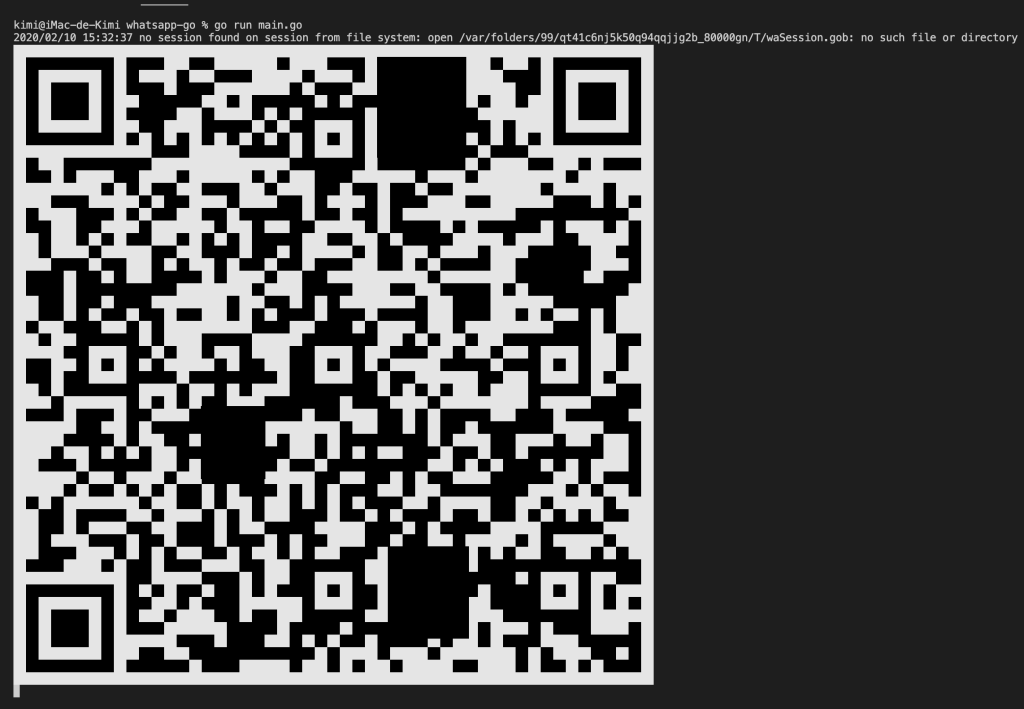
WhatsApp login QR Code -
iBeacons – Let your Mac broadcasts

iBeacons are built on top of Core Bluetooth so I wondered whether it would be possible to use a MacBook running Mavericks to create an iBeacon transmitter. As iBeacon is just the name Apple gives for using Bluetooth 4.0 Advertising mode with a specific data format. So transmitting iBeacons should not be very difficult.
A Bluetooth 4.0 Advertising packet consist of the following information:- Preamble – 1 byte. Always 0xAA
- Access Address: 4 bytes. Always 0x8E89BED6
- CRC: 3 bytes checksum calculated over PDU
- PDU (Protocol Data Unit): 39 bytes
The first three parts of the packet are handled by the Bluetooth Stack, so we should care about what information it is being sent in the Protocol Data Unit. Inside PDU there are some fields reserved for information, including Advertising channel, Manufacturer Specific Information, and so on. But the last 4 fields are of our interest. They are:
- Transmitter UUID (16 bytes)
- Major number (16 bit uint)
- Minor number (16 bit uint)
- Measured power (1 byte encoded as U2)
Major and Minor numbers help us differentiate between transmitters with the same UUID.
Matthew Robinson created an app for OSX called BeaconOSX that uses Mac’s Bluetooth 4.0 to transmit iBeacons, and a very simple class where it is easy to see how to encode information into the PDU and broadcast it.
- (NSDictionary *)beaconAdvertisement {
NSString *beaconKey = @”kCBAdvDataAppleBeaconKey”;
unsigned char advertisementBytes[21] = {0};
[self.proximityUUID getUUIDBytes:(unsigned char *)&advertisementBytes];
advertisementBytes[16] = (unsigned char)(self.major >> 8);
advertisementBytes[17] = (unsigned char)(self.major & 255);
advertisementBytes[18] = (unsigned char)(self.minor >> 8);
advertisementBytes[19] = (unsigned char)(self.minor & 255);
advertisementBytes[20] = self.measuredPower;
NSMutableData *advertisement = [NSMutableData dataWithBytes:advertisementBytes length:21];
return [NSDictionary dictionaryWithObject:advertisement forKey:beaconKey];
}
-(void)startAdvertising {
_manager = [[CBPeripheralManager alloc] initWithDelegate:self queue:nil];
NSDictionary* beaconAdvertisement = [self beaconAdvertisement]
[_manager startAdvertising:beaconAdvertisement];
}
More information about Bluetooth Advertising mode can be found at: https://www.bluetooth.org/en-us/specification/adopted-specifications -
Using Leap Motion in an Objective-C project
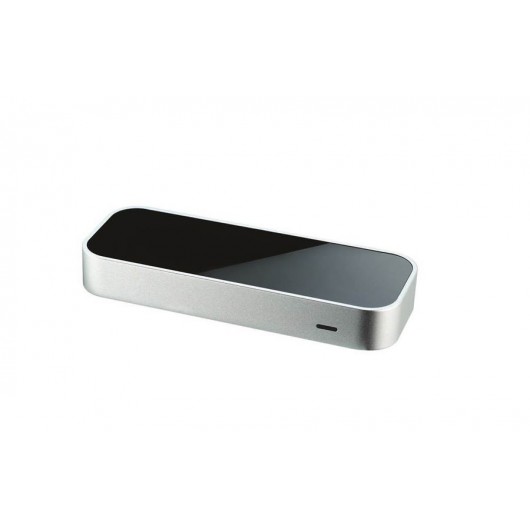
I have started learning about Leap Motion and decided to make a simple app in Objective C in order to test it. The first thing I realise it is that there is no template for Objective C, nor a guide of how to integrate the lib and setup the project. So here I will show how to set up an OS X project, and also I will provide a template.
- Once you create your project, drag and drop
Leap.hLeapMath.hLeapObjectiveC.hLeapObjectiveC.mminto your project and check “Copy items into destination group’s folder (if needed)”. Also check that files are added to your main target and “Create groups for any added folders” is selected. - Copy
libLeap.dylibinto your project folder. - Select your project and add
libLeap.dylibas a required framework. - Now let’s create a new Build Phase in order to copy libLeap.dylib into the executable. Go to your main target, click on “Build Phases” and add a “Copy Files Build Phase”. The destination must be set to “Executables”.
- Last, but not least, go to “Build Settings”, look for “C++ Standard Library” and make sure “libstdc++ (GNU C++ standard library)” is selected.
The class EALeapMotionController implements the interface LeapDelegate where all the events are handled.
Download template project - Once you create your project, drag and drop
-
Building Android for BeagleBone Black with Kernel 3.2

Note: SGX (hardware-accelerated OpenGL) is supported only in Kernel 3.2
Get source (using TI DevKit)
 mkdir ~/ti-android-bbb

cd ~/ti-android-bbb

repo init -u git://gitorious.org/rowboat/manifest.git -m TI-Android-JB-4.2.2-DevKit-4.1.1.xml

repo sync
Setup
export PATH=~/ti-android-bbb/prebuilts/gcc/linux-x86/arm/arm-eabi-4.6/bin:$PATHBuild U-Boot and X-Loader
 cd ~/ti-android-bbb/u-boot

make CROSS_COMPILE=arm-eabi- distclean

make CROSS_COMPILE=arm-eabi- am335x_evm_config

make CROSS_COMPILE=arm-eabi-
Build Android and Kernel with SGX On
 cd ~/ti-android-bbb

make TARGET_PRODUCT=beagleboneblack OMAPES=4.x

make TARGET_PRODUCT=beagleboneblack fs_tarball
Creating the SD Card
 mkdir ~/android-bbb-image

cp ti-android-bbb/kernel/arch/arm/boot/uImage ~/android-bbb-image

cp ti-android-bbb/u-boot/MLO ~/android-bbb-image

cp ti-android-bbb/u-boot/u-boot.img ~/android-bbb-image

cp ti-android-bbb/external/ti_android_utilities/am335x/u-boot-env/uEnv_beagleboneblack.txt ~/android-bbb-image

cp ti-android-bbb/out/target/product/beagleboneblack/rootfs.tar.bz2 ~/android-bbb-image

cp ti-android-bbb/external/ti_android_utilities/am335x/mk-mmc/mkmmc-android.sh ~/android-bbb-image

cd ~/android-bbb-image

sudo./mkmmc-android.sh /dev/sdX MLO u-boot.img uImage uEnv_beagleboneblack.txt rootfs.tar.bz2
-
Compiling Android with Kernel 3.8
Replace Rowboat default Kernel with Kernel 3.8
Note 1: SGX is not yet supported on Kernel 3.8 so there is no hardware-accelerated OpenGL on this release./pre>
Note 2: Consider Rowboat for BeagleBone Black was cloned at ~/rowboat-android-bbb and Kernel 3.8 is at ~/linux-dev
cd ~/rowboat-android-bbb
mv kernel kernel.bkp
ln -s ~/linux-dev/KERNEL kernel

Let's modify some Makefiles in order to use 'arm-linux-gnueabihf-' instead of 'arm-eabi' for compiling.
chmod 644 ~/rowboat-android-bbb/Makefile
vi ~/rowboat-android-bbb/Makefile
And add a # (comment) in front ofexport PATH :=$(PATH):$(ANDROID_INSTALL_DIR)/prebuilts/gcc/linux-x86/arm/arm-eabi-4.6/bin.
Below that (new) comment add the following two lines and save
export PATH :=~/linux-dev/dl/gcc-linaro-arm-linux-gnueabihf-4.7-2013.04-20130415_linux/bin:$(PATH)
export CC_PREFIX := arm-linux-gnueabihf-
Search the Makefile for references toarm-eabi-and replace them with$(CC_PREFIX). Once all the changes are saved, go on building Android with SGX support.
$ make TARGET_PRODUCT=beagleboneblack OMAPES=4.x droid -j4(It takes more or less 2 hours on a Intel i5 with 8GB of RAM.)
-
U-Boot for BeagleBone Black
Getting U-Boot and patching
Note: Use this guide only if you are building Android with Kernel 3.8
 cd ~/

mkdir u-boot-bbb

cd u-boot-bbb

git clone git://git.denx.de/u-boot.git

cd u-boot/

git checkout v2013.04 -b tmp

wget https://raw.github.com/eewiki/u-boot-patches/master/v2013.04/0001-am335x_evm-uEnv.txt-bootz-n-fixes.patch

patch -p1 < 0001-am335x_evm-uEnv.txt-bootz-n-fixes.patch
Compiling U-Boot
We will compile U-Boot using the same toolchain used for compiling the Kernel, and not the one present in Rowboat-Android
export PATH=$PATH:~/linux-dev/dl/gcc-linaro-arm-linux-gnueabihf-4.7-2013.04-20130415_linux/bin/

make ARCH=arm CROSS_COMPILE=arm-linux-gnueabihf- distclean

make ARCH=arm CROSS_COMPILE=arm-linux-gnueabihf- am335x_evm_config

make ARCH=arm CROSS_COMPILE=arm-linux-gnueabihf-

Output files
The output files are
./MLOandu-boot.img. Copy these two files into a new folder in your home directory (i.e.: ~/bbb-android-image)
Next: Compiling Android with Kernel 3.8


-
Subscribe
Subscribed
Already have a WordPress.com account? Log in now.
 Tech Blog